
Quick start
- Choose the installer for your computer and connect it to your MyDiagnostics workspace. Windows: Microsoft Store.
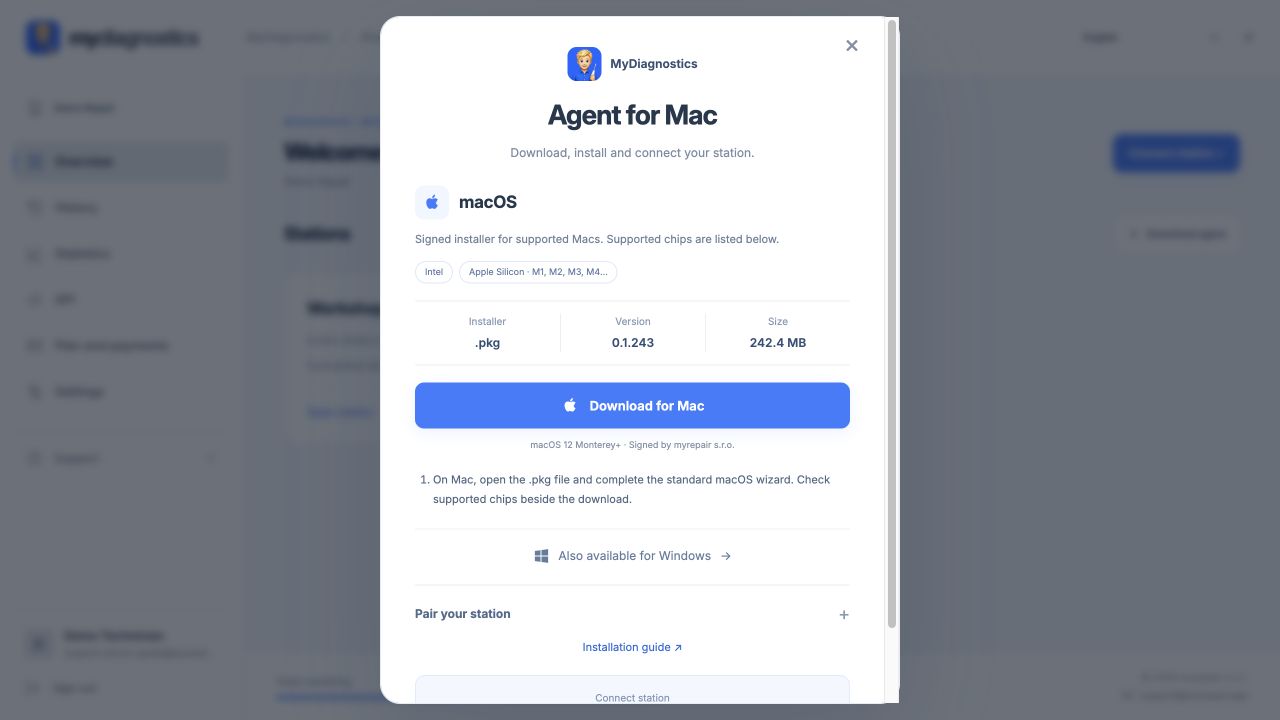
- On Mac, open the .pkg file and complete the standard macOS wizard. Check supported chips beside the download. Open Microsoft Store and install MyDiagnostics.
- Create a free account at workspace.mydiagnostics.app, verify your email and add company and billing details. No payment card or plan selection is required.
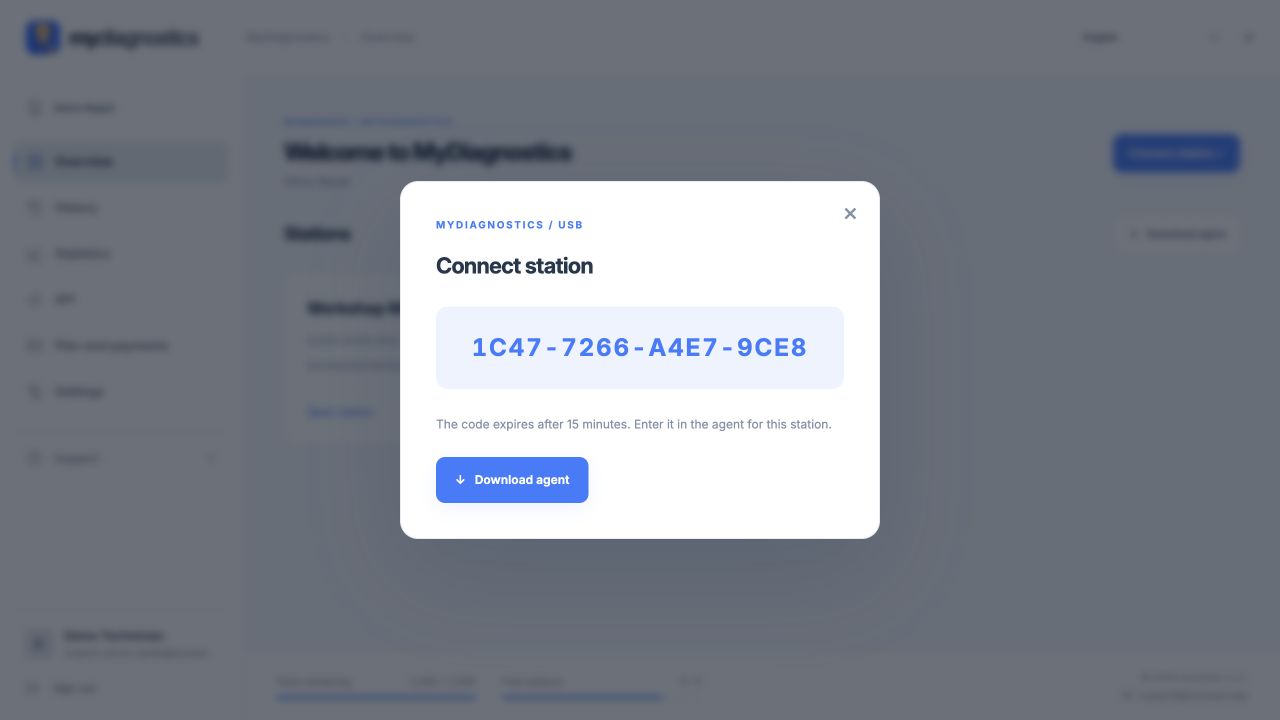
- Click Connect station in the workspace. Open MyDiagnostics on the computer and paste the pairing code, or scan its QR code and sign in on your phone.
macOS
macOS 12 Monterey+ · Intel · Apple Silicon
Signed by myrepair s.r.o.
Windows
Windows 10 version 2004 or later, or Windows 11 · x64 only.
App for iPhone and iPad
Download on the App StoreStep-by-step screenshots
Actual screenshots of the English interface with demo data. Appearance may vary slightly with the app version.
Minimum requirements
What you need before installing the agent.
macOS
- Operating system
- macOS 12 Monterey or later
- Processor
- Intel (64-bit) or Apple Silicon · M1 and later
- Intel + Apple Silicon
- One installer for Intel and Apple Silicon.
Windows
- Operating system
- Windows 10 version 2004 or later, or Windows 11
- Processor
- Intel / AMD · 64-bit system (x64)
- For iPhone connectivity
- Apple drivers · if missing, install iTunes for Windows.
Recommended performance per station
- Memory
- 8 GB RAM; we recommend 16 GB for multiple devices at once.
- Processor
- 64-bit Intel / AMD with 4 cores, or Apple Silicon M1 and later.
- Internet speed
- 20 Mbps download and 5 Mbps upload.
These are indicative recommendations, not verified minimum limits for the application. Resource needs increase with the number of devices tested simultaneously; a faster connection shortens downloads and updates.
For both systems
- Internet access on the computer
- A data USB cable and an unlocked iPhone or iPad
- Administrator permissions for installation
- An up-to-date browser for the MyDiagnostics workspace
Install on Windows
Windows 10 version 2004 or later, or Windows 11 · x64 only.
- Open Microsoft Store and install MyDiagnostics.
- Connecting an iPhone on Windows requires Apple drivers. If they are not installed yet, install iTunes for Windows using the link below, then reconnect your phone.
- Click Connect station in the workspace. Open MyDiagnostics on the computer and paste the pairing code, or scan its QR code and sign in on your phone.
- The computer needs internet access. Connect the iPhone using a data USB cable, unlock it and confirm Trust if prompted. The normal USB workflow needs neither an MDM profile nor phone Wi-Fi.
What to prepare before installation
Choose the installer for your computer and connect it to your MyDiagnostics workspace. The computer needs internet access. Connect the iPhone using a data USB cable, unlock it and confirm Trust if prompted. The normal USB workflow needs neither an MDM profile nor phone Wi-Fi.
Where to download the installer
Download agent: macOS / Windows. macOS: .pkg · Intel / Apple Silicon · macOS 12+. Windows: Microsoft Store · x64. Windows 10 version 2004 or later, or Windows 11 · x64 only. Signed by myrepair s.r.o.
macOS · Windows
On Mac, open the .pkg file and complete the standard macOS wizard. Check supported chips beside the download. Open Microsoft Store and install MyDiagnostics.
Click Connect station in the workspace. Open MyDiagnostics on the computer and paste the pairing code, or scan its QR code and sign in on your phone.
Check installation is complete
Downloading the file does not connect a station. After installation, check the company and station availability in your workspace. If the station is missing, check that the agent is running, internet access works and the pairing code is valid. Repeated downloads do not fix a wrong account or expired code. Once connected, follow the first diagnostics guide and test one device first.
Steps may vary slightly by app and operating system version.
All guidesNeed help?
Free includes public guides; personal technical support is included in paid plans. Email support@myrepair.app with your company name, device model, system version and the step where you stopped. Do not send passwords, access tokens or pairing codes.