
Quick start
- Check device power, screen unlock and the data cable. Try another USB port without a hub.
- Confirm trust on the device if required, then refresh the device list in the web station.
- Check that the Mac agent is running and paired with the correct company. Check internet access and updates.
- If the issue continues, note the time, model and system version and prepare a log without sensitive information. Send these details to support@myrepair.app.
Step-by-step screenshots
Actual screenshots of the English interface with demo data. Appearance may vary slightly with the app version.
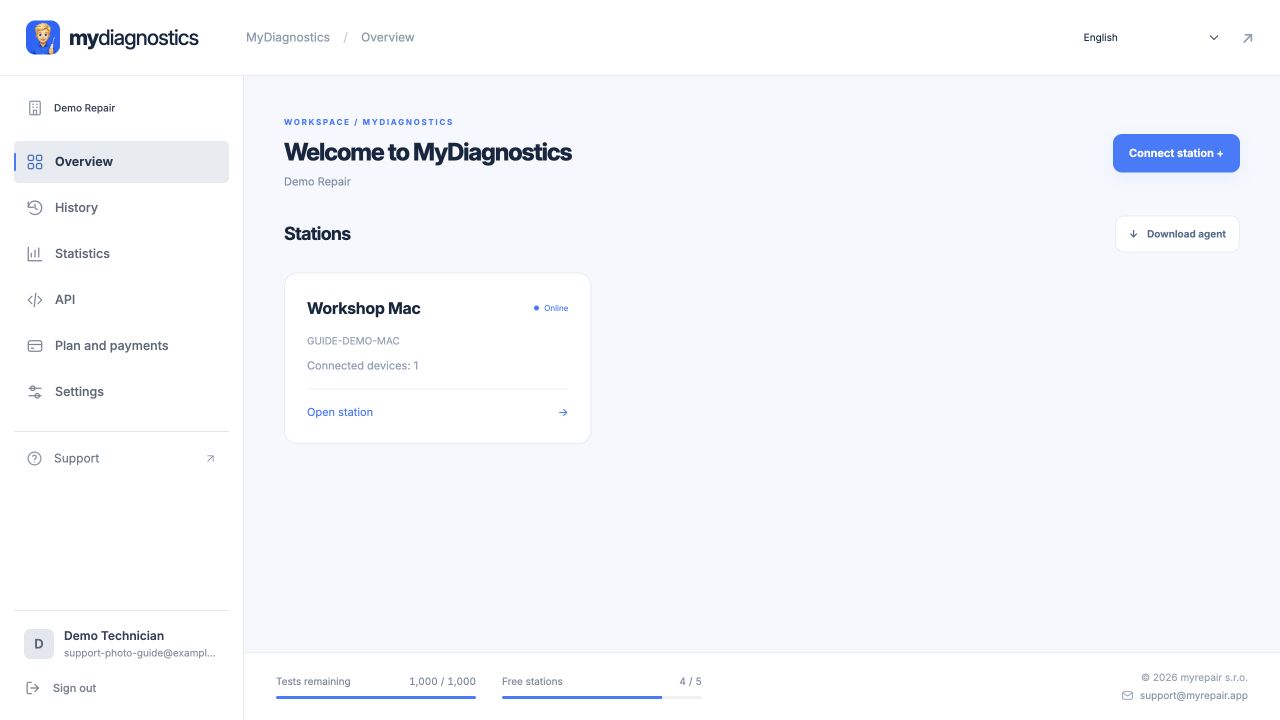
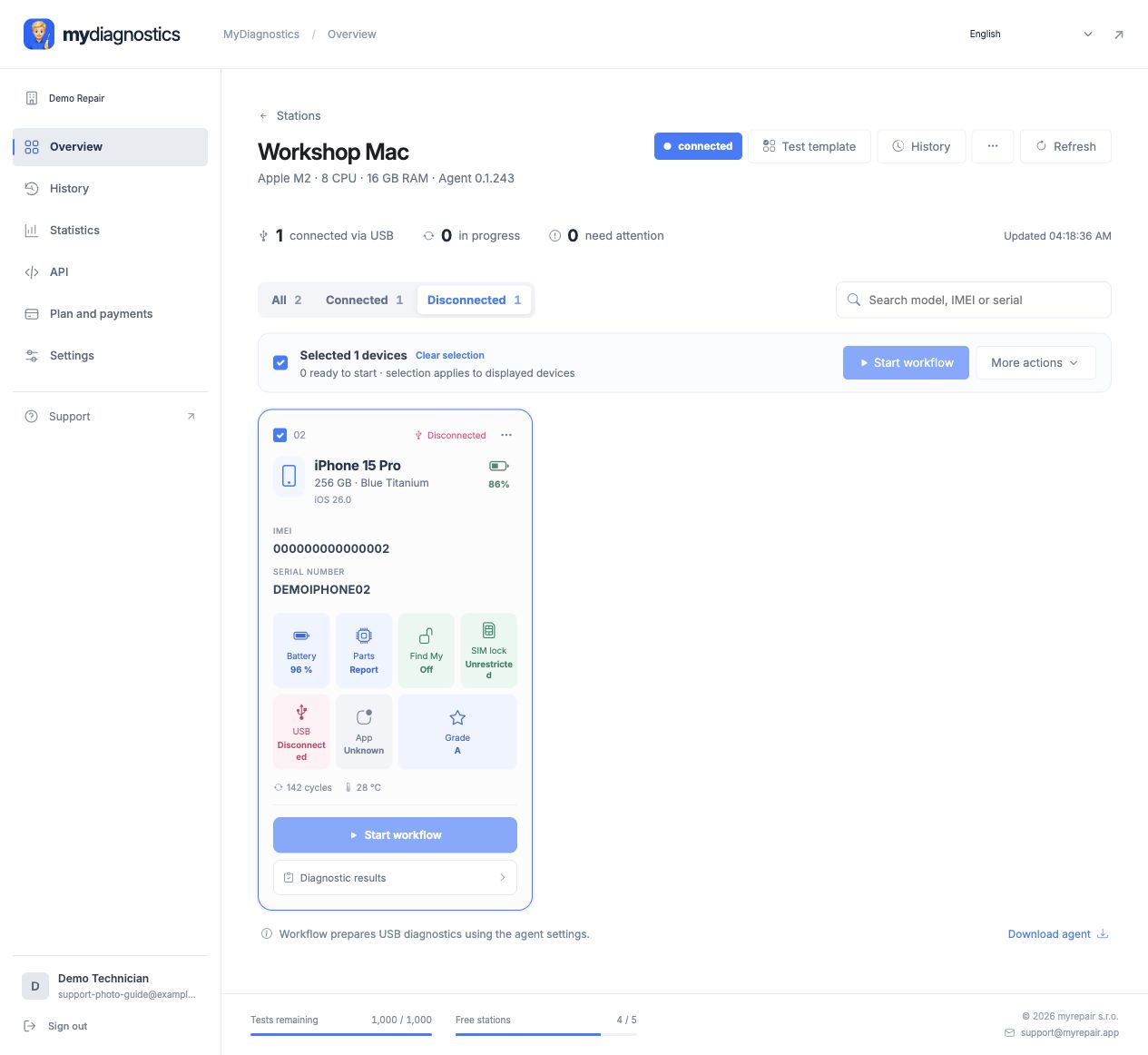
Locate where the connection stops
Distinguish a missing station from a missing phone. If the Mac is absent in the workspace, check the agent and internet connection first. If the station is available but the phone is missing, focus on USB and device state. Verify the company and station. Change one thing at a time and note the result; simultaneous changes make diagnosis harder.
USB cable, port and computer trust
Charging does not confirm a working data connection. Try a known working data cable directly connected to the Mac without a hub. Unlock the device and confirm Trust This Computer if prompted. Check whether the iPhone or iPad appears in Finder. If the Mac itself does not recognise it, fix that connection first; refreshing the web page cannot fix a faulty cable.
Station or result transfer disconnects
Keep the Mac awake and the agent running. Check internet access and company network restrictions. Refresh the workspace and compare station status with the local agent. Use a new expired pairing code and check your account if the wrong company was selected. Follow the available update wizard; do not disable macOS or network protections simply to attempt a connection.
What to send to support
Describe the last successful step precisely. Include company name, device model, system and macOS versions, error time and whether Finder sees the device. Provide the error or a log with sensitive data removed. State whether another cable and port were tested and whether one or several devices are affected. Never send passwords, pairing codes or permanent station tokens.
Official Apple documentation
Steps may vary slightly by app and operating system version.
All guidesNeed help?
Free includes public guides; personal technical support is included in paid plans. Email support@myrepair.app with your company name, device model, system version and the step where you stopped. Do not send passwords, access tokens or pairing codes.