

Quick start
- Prepare a custom test template for the device type and purpose.
- Select the intended devices in the station. Verify their identity and connection before starting.
- Run the selected available bulk action and monitor each device separately.
- Erasing and restoring are irreversible. Only start them with the owner's permission and after checking backups; regular diagnostics do not require them.
Step-by-step screenshots
Actual screenshots of the English interface with demo data. Appearance may vary slightly with the app version.
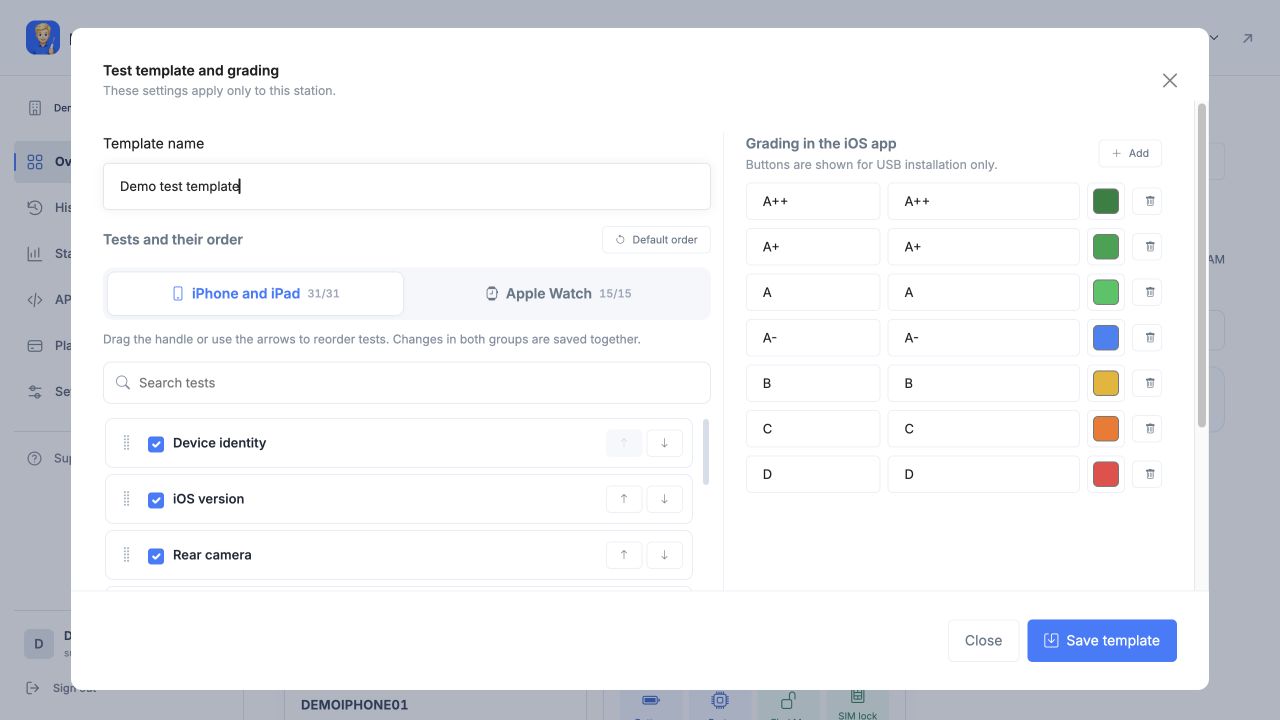
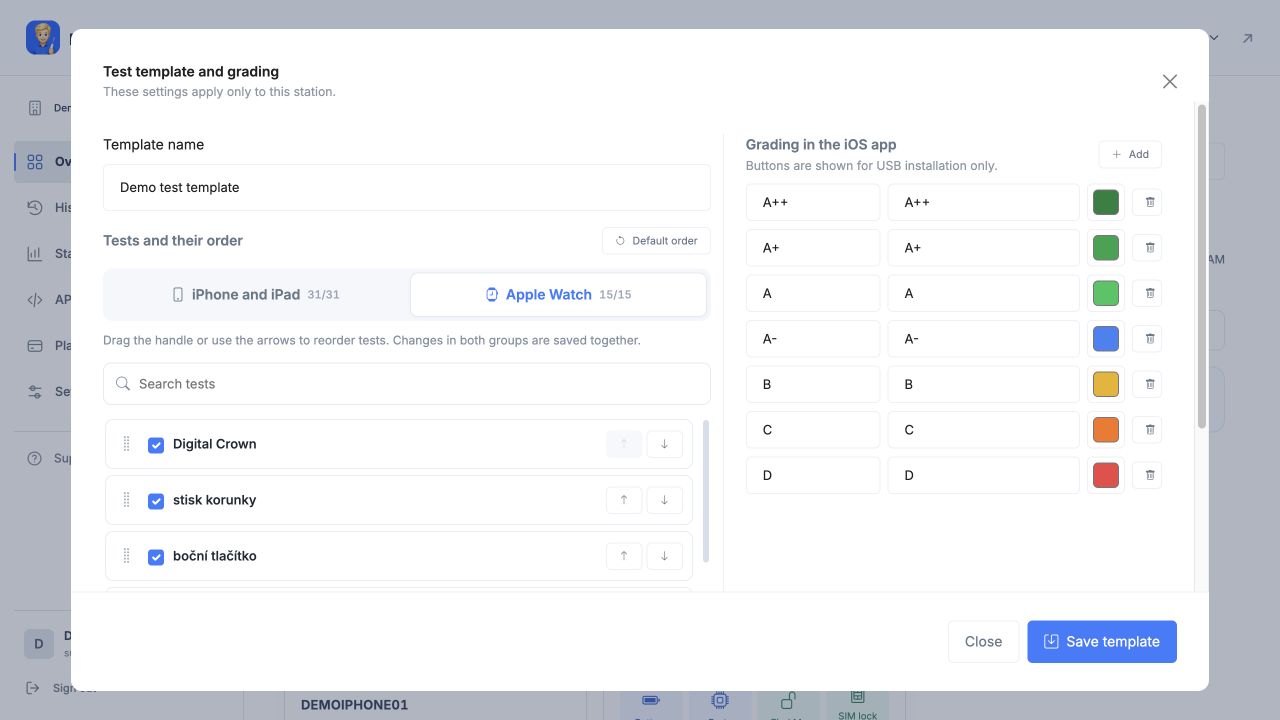
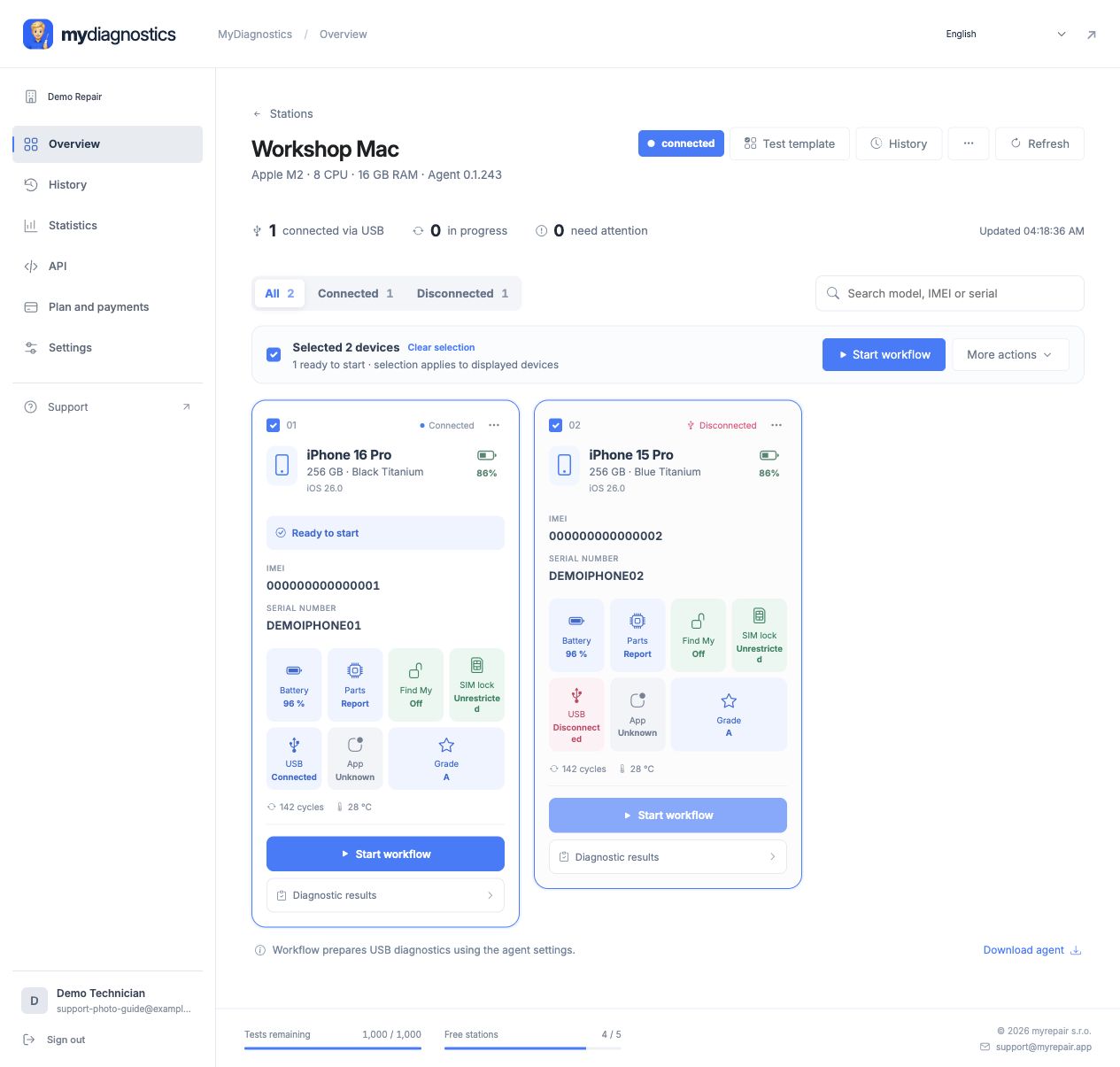
Design useful templates
Build templates around the purpose of diagnostics. Intake, post-repair checks and trade-ins can need different tests. Use a clear name and choose tests supported by target devices. Distinguish required steps from optional checks in your internal workflow. Verify a template on a representative device before rolling it out to the whole team.
Prepare multiple devices
Check device identity before selecting devices. Matching models or colours are not enough: compare serial number, IMEI or another identifier with the job. Standardise cables and labels on the workbench. Multiple connected devices can have different system versions, conditions and test availability. Check station availability and physical USB connections before starting.
Monitor each device
Evaluate bulk runs one device at a time. One phone may await trust confirmation, another interactive testing and another may be complete. Do not unplug the entire group based on one card. Isolate the affected phone and check the cable or required interaction. Repeat only necessary steps and consider your current monthly test allowance.
Template changes and final checks
Review every selected device before handover. Tell your team when a changed template takes effect; results from different test sets may not be directly comparable. Automatic preparation and regular diagnostics do not require erasing user data. Treat any separate restore or erase workflow independently, with the authorised owner and checked backups. Do not confuse it with normal testing.
Steps may vary slightly by app and operating system version.
All guidesNeed help?
Free includes public guides; personal technical support is included in paid plans. Email support@myrepair.app with your company name, device model, system version and the step where you stopped. Do not send passwords, access tokens or pairing codes.