

Quick start
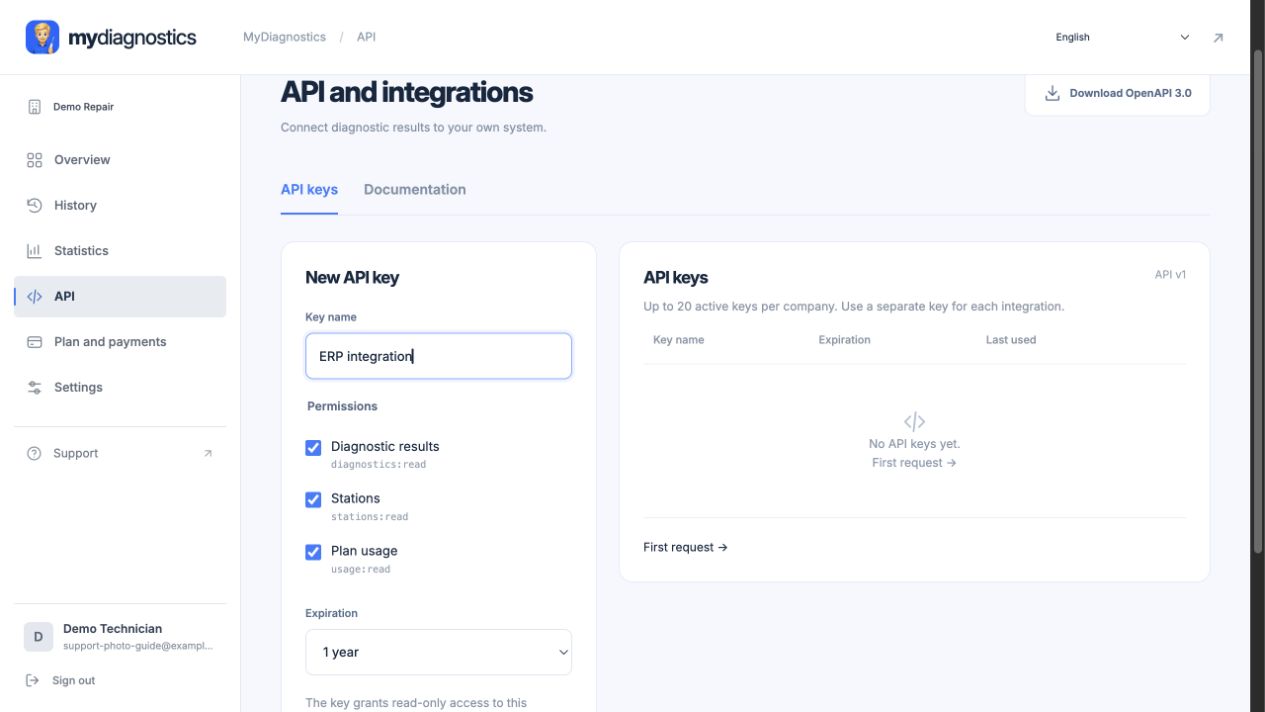
- Open API in Workspace and choose Generate key. Keys are managed by the company owner.
- Choose permissions and expiration, then store the key securely. The company owner can reveal it again with Show key. Older keys stored only as a hash cannot be revealed.
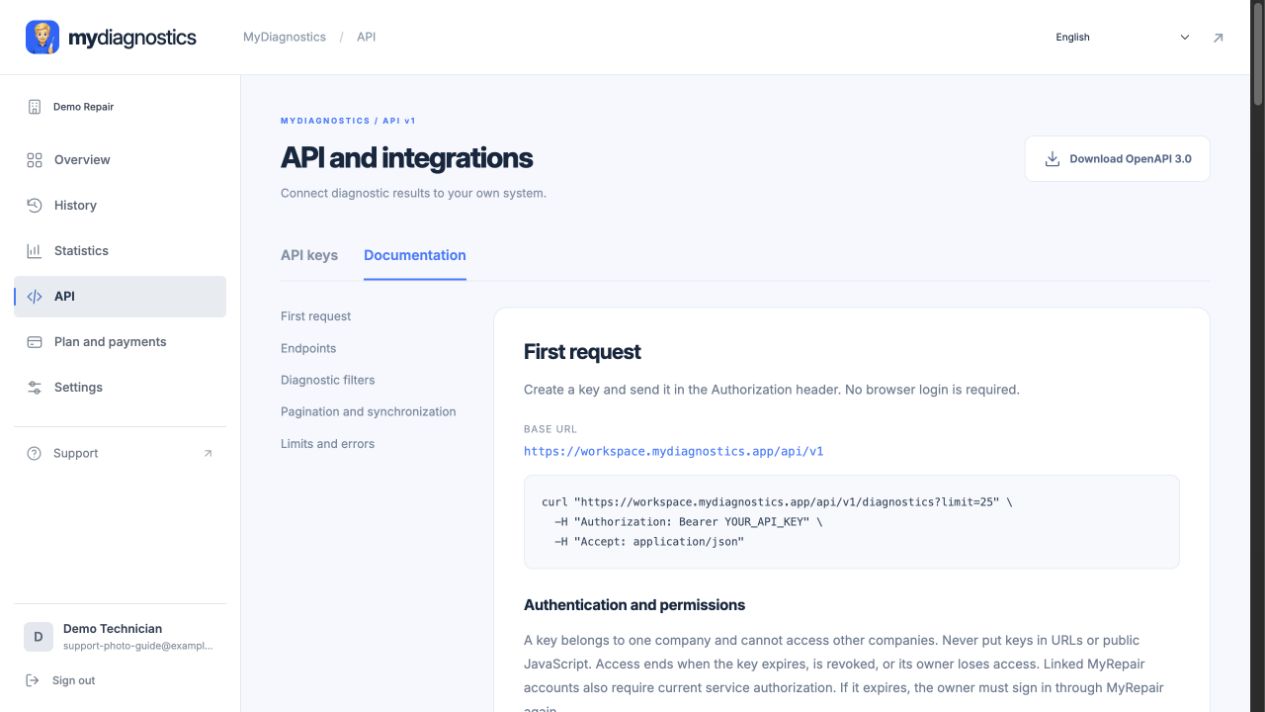
- Keep the key on your integration server. Send requests to https://workspace.mydiagnostics.app/api/v1 with Authorization: Bearer YOUR_API_KEY.
- Use workspace.mydiagnostics.app/api/docs/ to verify filters and pagination. OpenAPI describes exact endpoints and response formats.
Step-by-step screenshots
Actual screenshots of the English interface with demo data. Appearance may vary slightly with the app version.
Define the integration goal first
API v1 is included in every MyDiagnostics plan. The company owner creates keys at workspace.mydiagnostics.app/api/. The API reads diagnostic history and details, individual test results, stations and plan usage. Authentication, filters, pagination and examples are documented at workspace.mydiagnostics.app/api/docs/. Import the OpenAPI specification into Postman or Swagger.
Map data and device identities
Define an unambiguous way to assign results. Decide how your system handles serial numbers, IMEI, internal jobs and test times. Some device data may be unavailable. Distinguish missing values, incomplete tests and valid results. Handle repeat diagnostics so new results do not silently overwrite an earlier service state.
Credentials and company separation
Keep integration credentials on your server. Never put them in public JavaScript, screenshots or ordinary email attachments. Use only permissions authorised for your own account, never another company’s access. A station pairing code is not automatically an API key. Implement authentication and access renewal from current documentation. If a credential is exposed, arrange revocation and replacement with your administrator or support.
Test before production deployment
Verify the integration with a small controlled sample. Check device identity, times, units and error or outage handling. Make repeated processing safe to prevent duplicates or unintended extra operations. Log only necessary technical information, without passwords or tokens. For help, email the goal, documentation version, error time and an anonymised example to support@myrepair.app.
Steps may vary slightly by app and operating system version.
All guidesNeed help?
Free includes public guides; personal technical support is included in paid plans. Email support@myrepair.app with your company name, device model, system version and the step where you stopped. Do not send passwords, access tokens or pairing codes.