

Quick start
- Open the diagnostic session in history and verify the device and date.
- Check test completion and add handover information. Clearly describe incomplete or unavailable results.
- Create an available report, export or label. Check label dimensions and printer settings before printing.
- Find reports and results again in history. Share access only with authorised people.
Step-by-step screenshots
Actual screenshots of the English interface with demo data. Appearance may vary slightly with the app version.
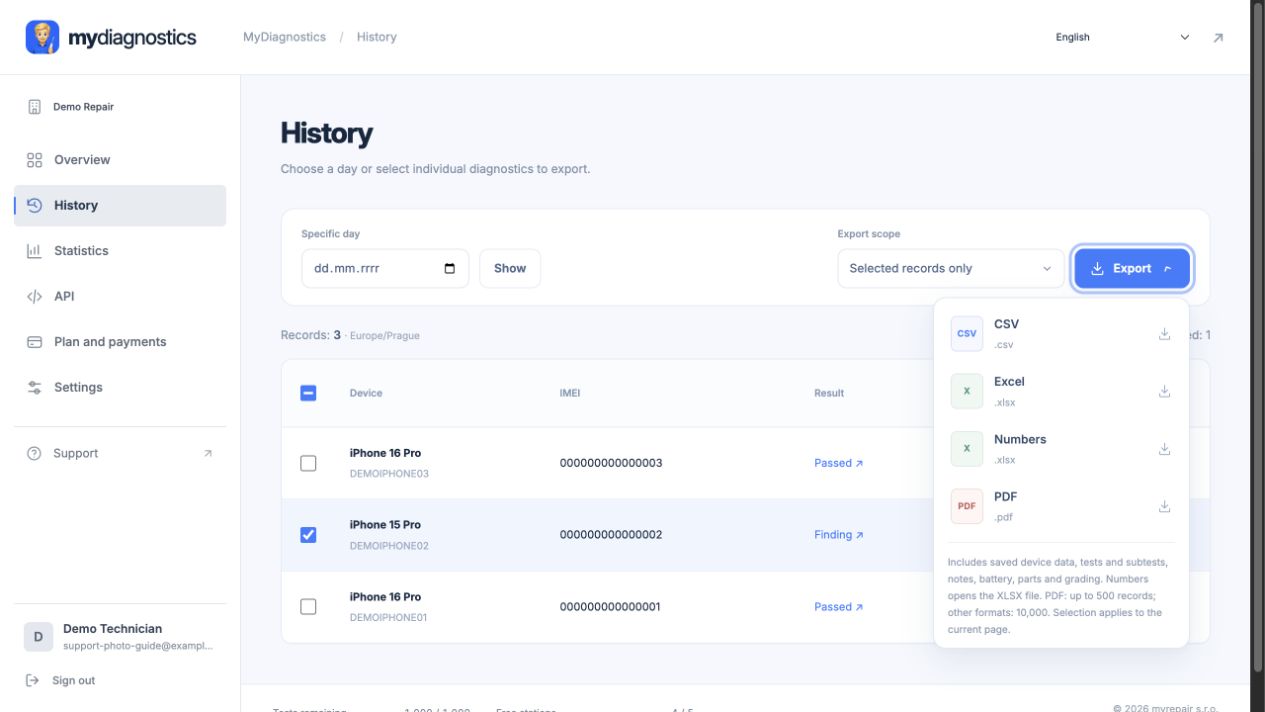
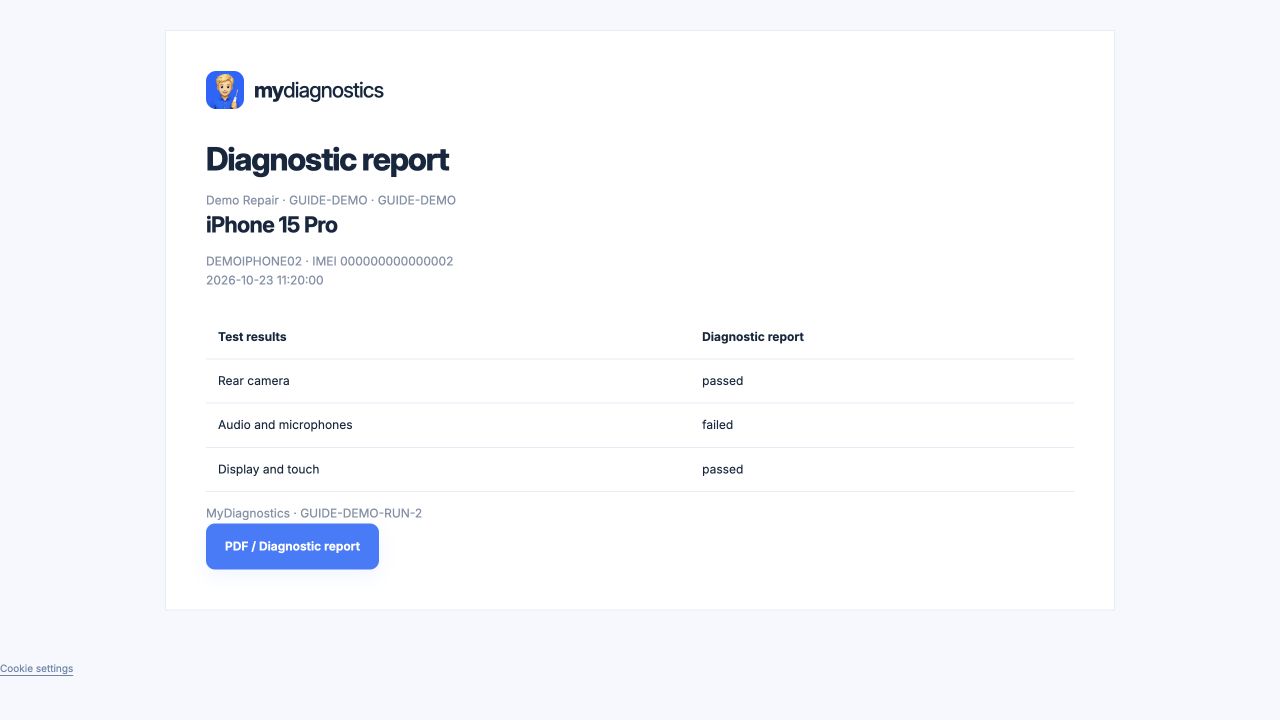
Choose the correct diagnostic session
A report starts with correct device identification. Verify the model, available identifier and test date in history. The same phone may have sessions before and after repair. Choose the session you intend to document and do not combine dates without explanation. Before printing a label, compare the device on your desk with its web record again.
Check before exporting
Review completed, failed and unperformed tests. A blank field or missing reading is not evidence of a fault-free device. Explain unavailable tests in notes or handover documentation and check battery reading times. Recipients should understand what was actually tested and which conclusions rely only on available device data.
Labels and printing
Print one sample label before a bulk run. Choose the available format, check printer media dimensions and confirm important fields are readable. Scaling and margins can affect results even with correct data. Attach labels so they cannot be confused between devices. Only include information necessary for the repair workflow on publicly visible labels.
History and sharing results
All plans include unlimited diagnostic history. Find records again and compare later tests. Use export formats available in your interface and agree a consistent handover workflow with the team. Store and share files containing serial numbers, IMEI or customer data only with authorised people. Check the recipient and file contents before sending.
Steps may vary slightly by app and operating system version.
All guidesNeed help?
Free includes public guides; personal technical support is included in paid plans. Email support@myrepair.app with your company name, device model, system version and the step where you stopped. Do not send passwords, access tokens or pairing codes.