
Quick start
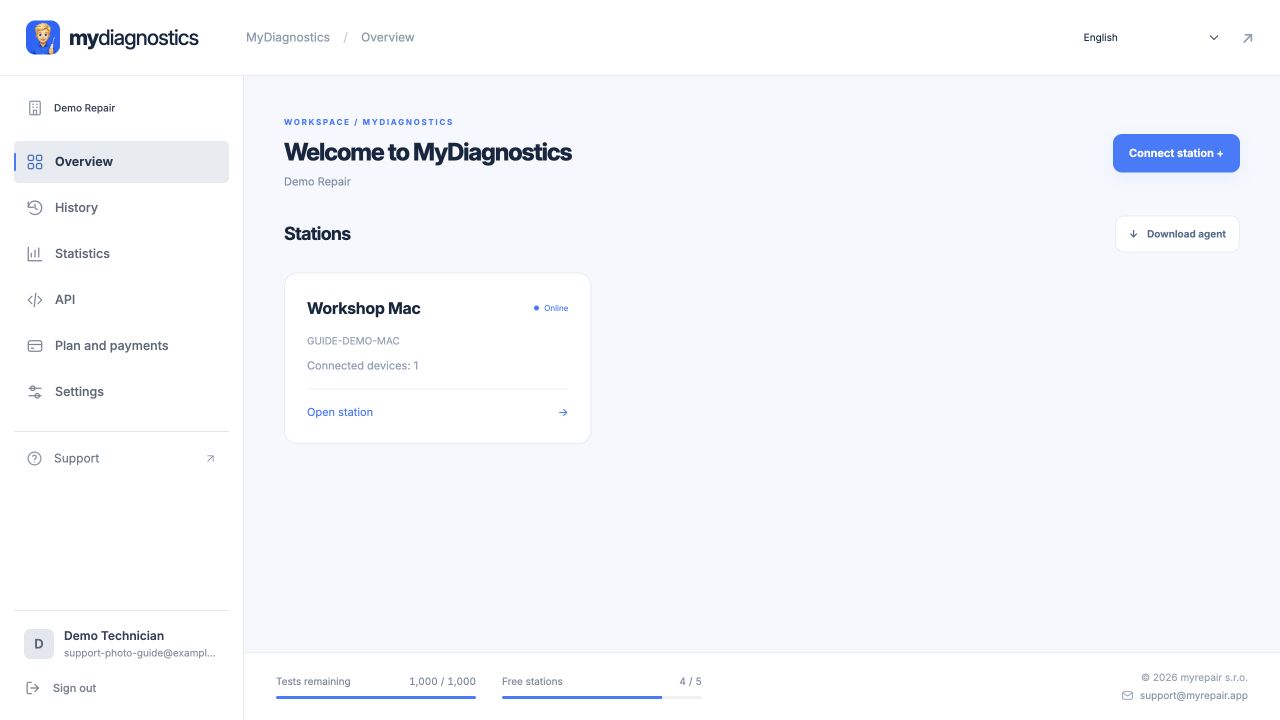
- Sign in to workspace.mydiagnostics.app and open station management.
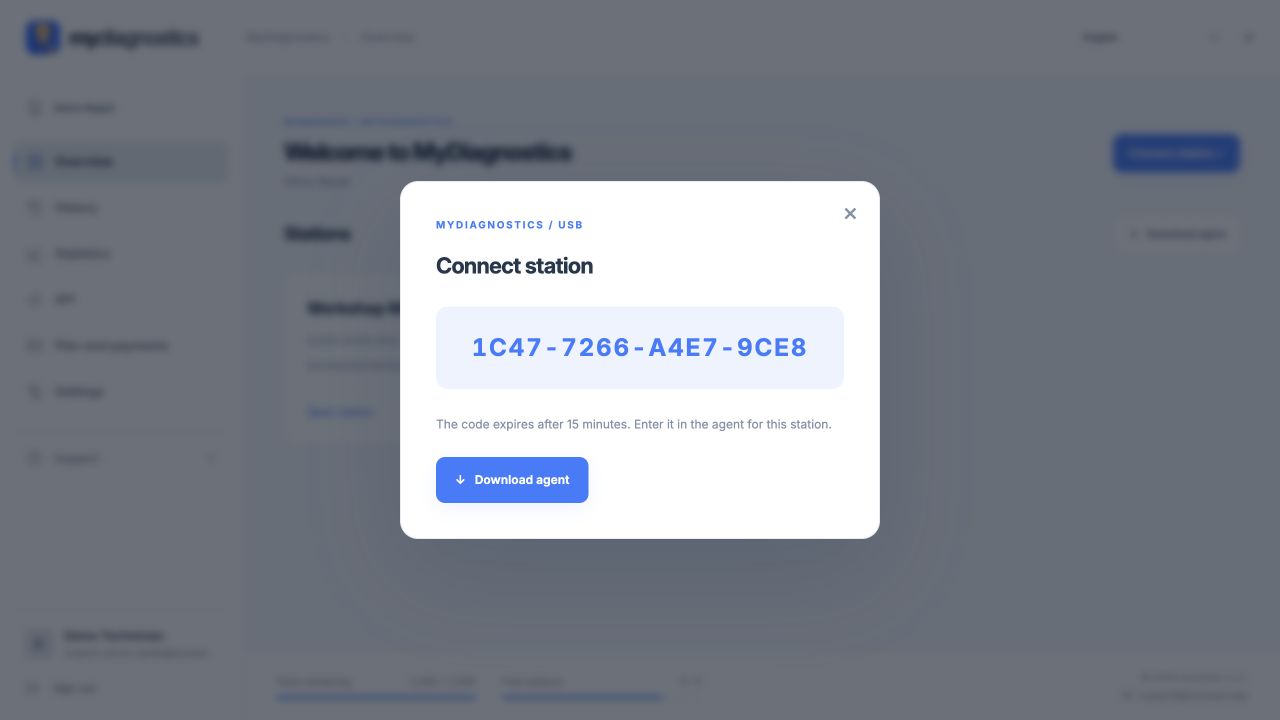
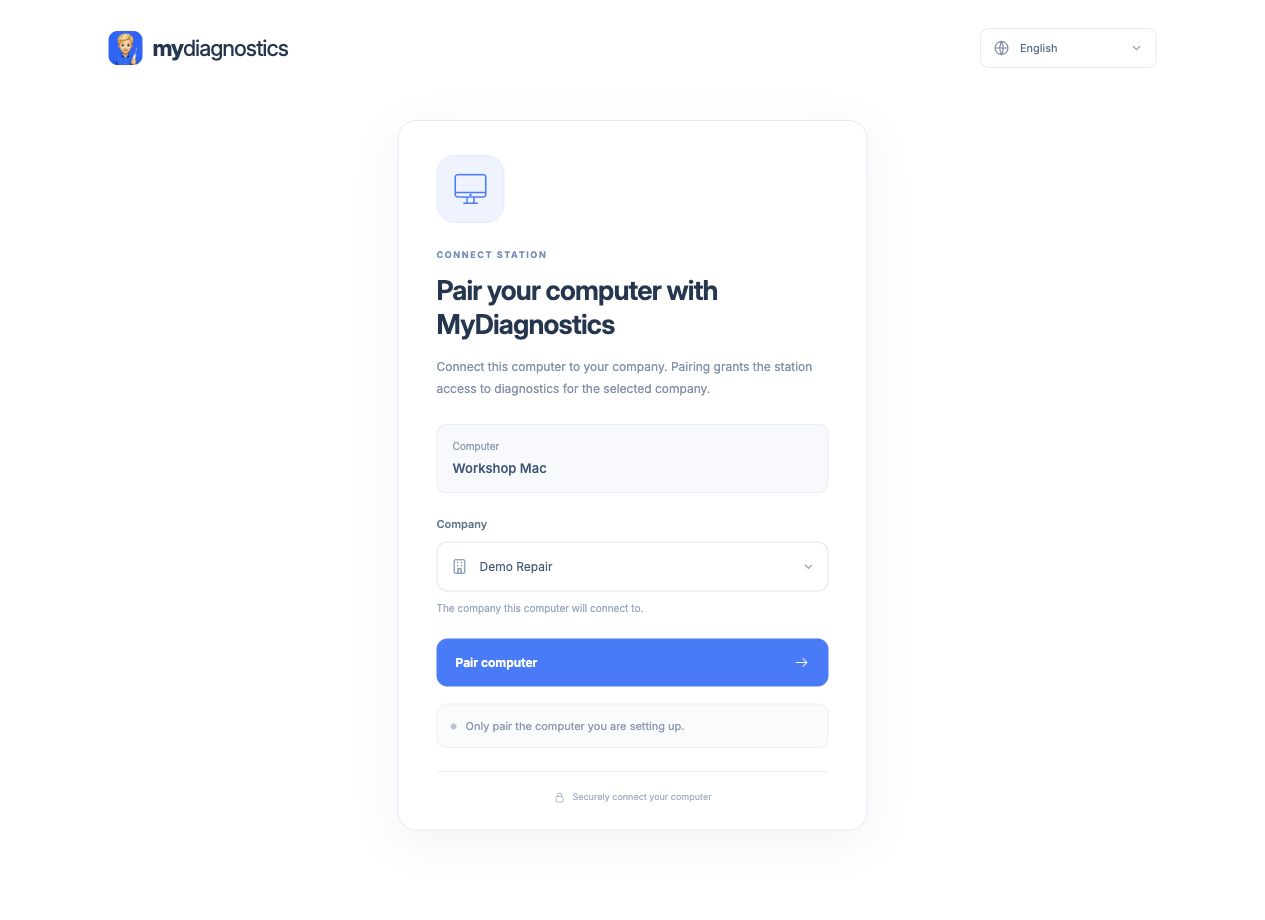
- Click Connect station in the workspace. Open MyDiagnostics on the computer and paste the pairing code, or scan its QR code and sign in on your phone.
- Check that the app shows the correct company and a connected station. Keep the station token private.
- If pairing fails, check the internet connection, company account and agent status. Only use your own company's pairing details.
Step-by-step screenshots
Actual screenshots of the English interface with demo data. Appearance may vary slightly with the app version.
What pairing a station means
A station is a repair Mac connected to your company. Pairing determines which workspace receives devices and diagnostic data. Check your signed-in account and company details before creating a code. Website sign-in and the running agent are separate parts of the workflow; an open browser page alone does not connect the Mac as a station.
Use the pairing code
The code XXXX-XXXX-XXXX-XXXX expires after 15 minutes. Create it using Connect station in your workspace and enter it in MyRepair Diagnostics on the intended Mac. Preserve all character groups without surrounding spaces. Generate a new code if it expires. A pairing code is different from your account password and the permanent station token.
If another station cannot be added
The available station count depends on your licence. The free plan includes one station. Check your account and current pricing for additional capacity. Creating more codes does not bypass the limit. Check whether the Mac is already connected and arrange a replacement or extra station through account management or support. Do not create another company for routine reconnection.
Check after pairing
Verify the company, station name and current availability. Connect one device by data-capable USB cable and check it appears under the correct station. Troubleshoot internet access, the running agent and then the USB connection. Never send pairing codes or tokens to customers or another company. Support needs the attempt time, error and the last successful step.
Steps may vary slightly by app and operating system version.
All guidesNeed help?
Free includes public guides; personal technical support is included in paid plans. Email support@myrepair.app with your company name, device model, system version and the step where you stopped. Do not send passwords, access tokens or pairing codes.